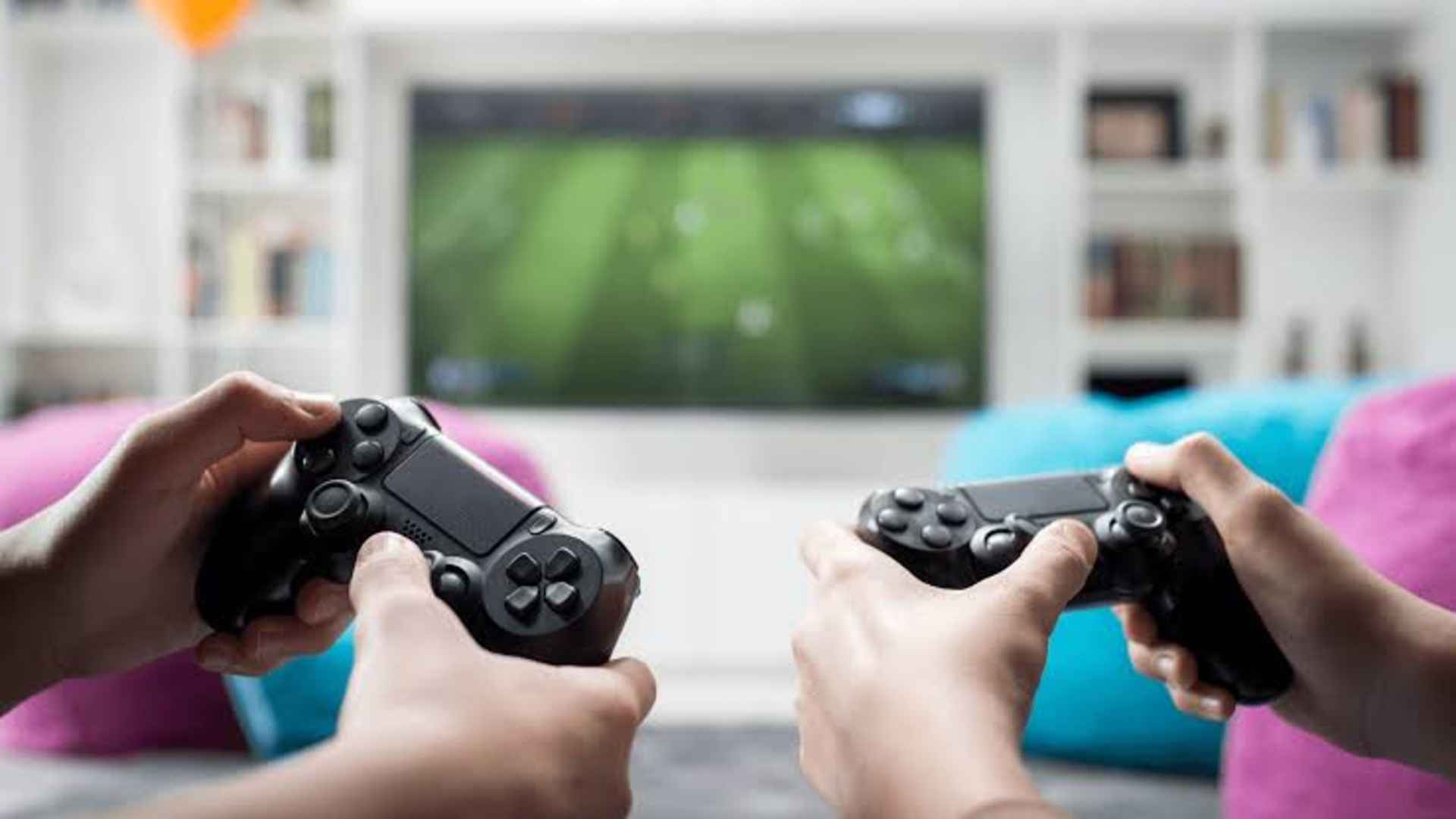
Setting up a PlayStation 4 console for the first time opens up a massive world of entertainment, digital adventures, and multiplayer gaming communities. Whether you are opening a brand-new system or preparing a pre-owned console, a proper installation ensures long-term stability and optimal system performance. Following the correct sequence helps prevent unexpected software bottlenecks or connectivity updates during your initial gaming sessions.
Unboxing and Physical Cable Connections
The initialization process begins with placing your system on a flat surface with sufficient ventilation to prevent future overheating issues. Next, link the included high-speed HDMI cable from the back of the console directly to an available port on your television or display monitor. Finally, secure the heavy-duty power cord into a reliable electrical wall outlet and connect the DualShock 4 controller using the provided micro-USB charging cable.
Ensuring your hardware has enough room to breathe is vital for internal temperature control during demanding gameplay loops. Avoiding enclosed cabinets protects the processing chips from running too warm or creating unnecessary fan noise over prolonged use. Once all physical connections are firmly locked in place, turn on your monitor before pressing the power button on the front face of the console.
Navigating the Initial System Initialization
When the system boots for the first time, you will be prompted to press the PS button on your hardwired controller to establish a secure hardware link. The system interface will immediately guide you through basic localization preferences, including choosing your preferred display language and regional time zones. Accurately configuring these early parameters ensures that future software downloads and game store updates align correctly with your geographical location.
After managing your regional configurations, the setup wizard will request access to your home internet connection via a wireless network or an Ethernet cable. Establishing a stable online connection allows the console to scan for critical firmware updates that enhance system stability and patch security vulnerabilities. If a system update is detected, allow the device to complete the download and restart automatically without pulling any power cords.
Creating and Configuring Your PlayStation Network Account
To access digital storefronts, download multiplayer patches, and save online game trophies, you must link the console to a dedicated digital profile. You can either log into an existing network profile or select the registration option to generate a completely new digital identity from the main interface dashboard. This credential configuration serves as your permanent gaming identity and holds all your digital licenses, friends lists, and payment preferences safely.
During this registration phase, it is highly recommended to establish strong security parameters, such as enabling two-factor authentication to protect your private data. Setting up secure login passcodes directly on the dashboard prevents unauthorized users from altering your personal dashboard settings or purchasing premium software packages. Taking these minor preventative steps early on shields your gaming profile from potential security breaches down the road.
Optimizing Device Settings for the Best Performance
Once the primary profile configuration concludes, navigating to the main settings panel allows you to refine your audio and video outputs for your specific display unit. Adjusting the high-dynamic-range video boundaries ensures that visual assets display deep contrast levels and accurate color reproduction across various gaming environments. Additionally, you can configure the audio settings to match either standard television speakers, immersive surround sound setups, or personal gaming headsets.
Lastly, customizing the power saving options determines how the console operates when left unattended or shifted into its low-energy rest mode. Enabling continuous USB power delivery during rest mode allows your controller to charge safely while the main system remains quiet and power-efficient. You can also permit the background system to download software updates autonomously so your favorite digital games are always fully updated and ready to play.